
On this page8
- What Are Video Compressor Tools?
- When You Should Use Video Compressor Tools
- Key Features to Look for in Video Compressor Tools
- Top Video Compressor Tools to Compress Video Fast
- Online vs Desktop Video Compressor Tools
- Best Settings to Compress Video Without Losing Quality
- How to Choose the Right Video Compressor Tool
- Final Thoughts
Video files are getting larger every year. A single minute of 4K video can exceed 300–400 MB, depending on bitrate and codec. That becomes a real problem when you’re uploading to websites, sending files to clients, or trying to store large video libraries.
Compression solves that problem.
A good video compressor can reduce file size by 40–90% without noticeable quality loss when the right codec and bitrate settings are used.
For example, the widely used H.265 (HEVC) codec can deliver up to 50% better compression efficiency than H.264, according to research published by the MPEG standards group.
The demand for smaller, faster-loading video files is also rising as video continues to dominate internet traffic. Cisco’s Visual Networking Index previously estimated that video would account for over 80% of global internet traffic, a figure widely cited across the streaming and marketing industries. Source
That’s where video compressor tools come in. The right app can quickly shrink large video files, speed up uploads, and make distribution much easier across websites, email, and social platforms.
Check out our latest blog on Fast Auto Clicker for Chromebook (Best & Free Tools)
What Are Video Compressor Tools?
Video compressor tools reduce the size of video files while preserving visual quality as closely as possible to the original. They do this by adjusting technical factors like bitrate, codec, resolution, and frame rate.
Most modern tools rely on efficient codecs such as H.264 or H.265 to shrink large files. Instead of storing every frame at full data size, these codecs remove redundant visual information and compress the rest into a smaller package.
The result is a video that looks nearly identical to the original but takes far less storage space and uploads much faster.
Read More On Samsclub.com Website Ranking, Traffic and Analysis
Why Video File Sizes Get So Large
Several factors can quickly increase video file size:
- High resolution recordings like 4K or 8K
- High bitrate exports from cameras or editing software
- Long recording durations
- Unoptimized export settings
For example, a 10-minute 4K recording from a smartphone can easily exceed 3–4 GB if exported at a high bitrate.
How Video Compression Works
Most video compressor tools apply a combination of techniques:
Bitrate reduction
Lowering the bitrate reduces the amount of data stored per second of video.
Codec conversion
Switching from older codecs to efficient ones like H.265 can significantly shrink file size.
Resolution scaling
Reducing resolution (for example, 4K to 1080p) dramatically cuts file size.
Frame rate adjustment
Lower frame rates reduce the number of frames stored each second.
Good compression tools let you control these settings, allowing you to balance file size and visual quality depending on how the video will be used.
When You Should Use Video Compressor Tools
Large video files create friction in almost every workflow. Uploads take longer, storage fills quickly, and many platforms reject oversized files.
Video compressor tools fix that by shrinking files before they are shared, published, or archived.
Uploading Videos to Websites
Large videos can slow page load times, directly affecting user experience and search performance.
Google has confirmed that page speed is a ranking factor. Compressing videos before uploading helps reduce bandwidth usage and keeps pages loading quickly.
Many site owners compress videos before embedding them or hosting them on platforms like YouTube or Vimeo.
Sending Videos Through Email or Messaging Apps
Most email services limit attachments to 20–25 MB. Messaging apps also impose strict file size limits.
Without compression, even short videos can exceed those limits. Compressing the file makes it easier to send videos through email, Slack, or messaging apps.
Saving Storage Space
Video files consume a large portion of storage on laptops, external drives, and cloud platforms.
Compressing archived footage can significantly reduce storage usage. This is especially useful for creators who record large amounts of raw video.
Faster Social Media Uploads
Platforms like YouTube, Instagram, TikTok, and LinkedIn process huge amounts of video content daily.
Smaller video files upload faster and process more quickly after upload. This makes compression useful for creators and marketers who frequently publish video content, especially those using an AI video generator.
Check out our latest blog on estoturf.fr: Domain Analysis, Organic Traffic & SEO Insights
Key Features to Look for in Video Compressor Tools
Not all video compressor tools perform the same. Some offer basic compression with limited control, while others allow precise adjustments to balance file size and visual quality.
These are the features I usually check before choosing a compression tool.
Quality Control Settings
Good compressors let you adjust bitrate, resolution, and codec settings.
This level of control matters because aggressive compression can damage video quality. Tools that allow manual adjustments help you reduce file size while keeping the video usable for web or social media.
Batch Compression
If you work with multiple videos, batch compression saves time.
Instead of processing files one by one, batch tools compress several videos in a single run. This feature is common in desktop software used by creators and editors.
Format Compatibility
Videos come in different formats such as MP4, MOV, AVI, MKV, and WebM.
A reliable compressor supports multiple formats and allows easy conversion between them. This becomes useful when a platform requires a specific format.
Compression Speed
Compression can take time, especially with large files.
Some tools support hardware acceleration, which uses your GPU or CPU more efficiently. This significantly reduces processing time when compressing long videos.
File Size Preview
A helpful feature is the ability to estimate the final file size before exporting.
This allows you to adjust the bitrate or resolution until the file reaches a target size, which is useful when uploading to platforms with strict file size limits.
Top Video Compressor Tools to Compress Video Fast
Many apps can compress video files, but only a few combine speed, quality control, and support for multiple formats. Below are some of the tools I regularly see creators, marketers, and editors use.
1. Clideo

Clideo is a browser-based video compression tool designed for quick tasks.
You upload a video, the tool automatically compresses it, and you download the smaller version. No software installation is required.
Clideo also works well as a simple video size reducer for users who just want to shrink files quickly before uploading them to websites, email, or social media.
Key features:
- Simple drag-and-drop interface
- Works on any device with a browser
- Supports common formats like MP4 and MOV
- Fast processing for short videos
Clideo works best for small files and occasional compression tasks.
2. HandBrake

HandBrake is one of the most widely used open-source video compressors.
It supports advanced compression settings, including bitrate control, codec selection, and resolution scaling. The software works on Windows, Mac, and Linux, making it accessible for most users.
Key features:
- Supports H.264, H.265, VP9, and AV1 codecs
- Presets for fast compression
- Batch encoding for multiple videos
- Completely free and open source
HandBrake works well for users who want detailed control over compression settings.
3. Adobe Media Encoder
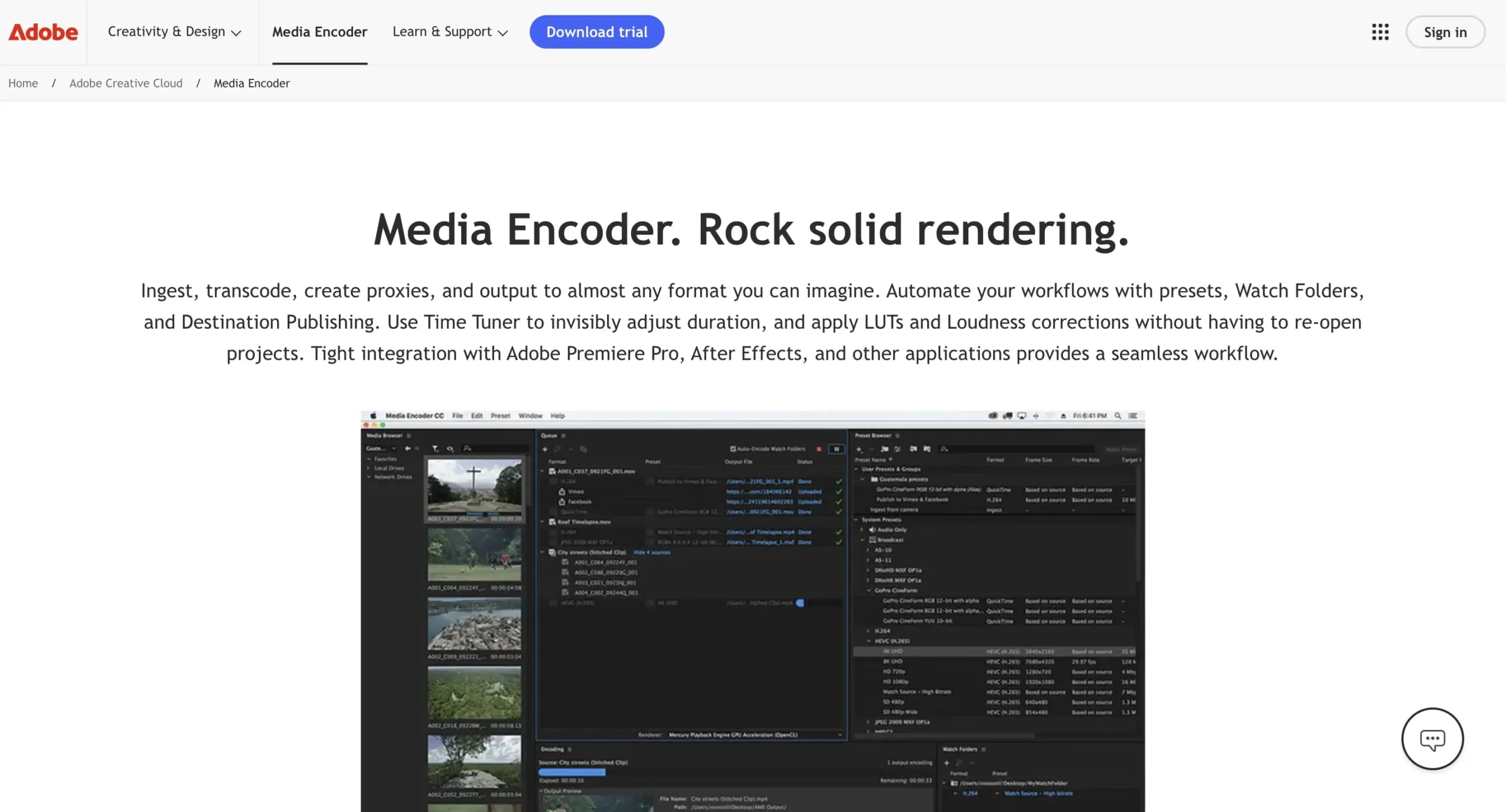
Adobe Media Encoder is widely used in professional video workflows. It integrates with Adobe Premiere Pro and After Effects, making it useful for editors exporting large projects.
It provides strong compression presets optimized for platforms like YouTube and Vimeo.
Key features:
- High-quality export presets
- Batch compression for multiple videos
- Queue-based processing
- Advanced codec and bitrate control
This tool is commonly used by editors working inside the Adobe ecosystem.
4. VEED
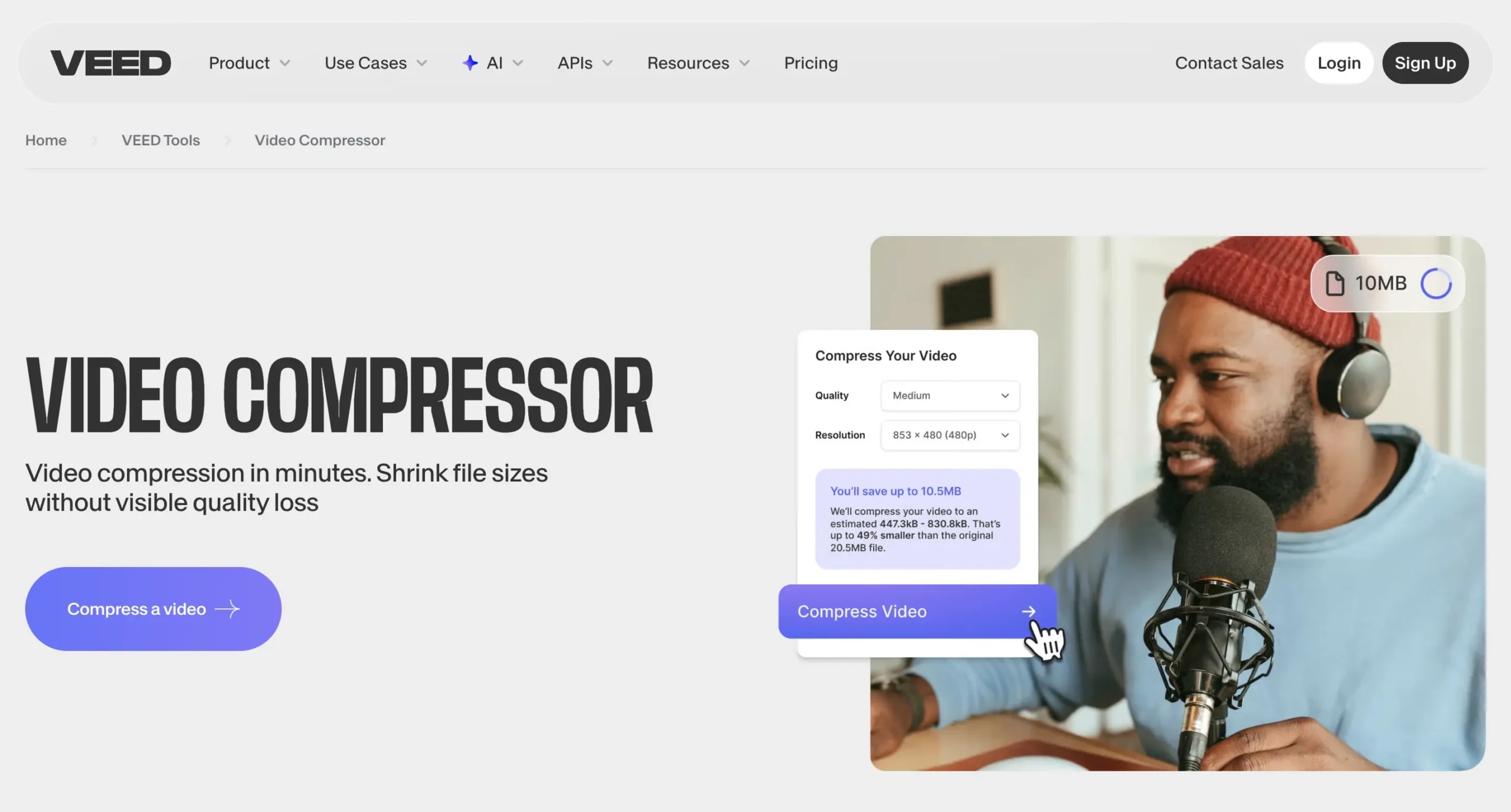
VEED combines video editing and compression in one online platform.
It allows users to trim videos, adjust quality settings, and export smaller versions optimized for social media.
Key features:
- Browser-based video editor
- Built-in compression settings
- Social media export presets
- Works across devices
This tool is popular with creators producing social media videos.
5. FreeConvert

FreeConvert is another web-based compression tool designed for quick file size reduction.
It allows users to target a specific output file size, which is helpful when uploading to platforms with strict limits.
Key features:
- Target file size compression
- Adjustable compression level
- Supports many video formats
- Works directly in the browser
FreeConvert works well for quick compression when you don’t need advanced editing controls.
Online vs Desktop Video Compressor Tools
Video compressors generally fall into two categories: online tools and desktop software. Each option works well in different situations depending on file size, workflow, and control over compression settings.
Online Video Compressor Tools
Online compressors run directly in your browser. You upload the video, the tool compresses it on a remote server, and you download the smaller file, making it much easier to share content or prepare it for online video streaming.
Pros:
- No installation required
- Works on any device with a browser
- Simple interface for quick compression
Cons:
- Upload limits for large files
- Slower processing for long videos
- Privacy concerns when uploading sensitive content
Online tools are a practical choice when you need to compress short videos quickly without installing software.
Desktop Video Compressor Tools
Desktop compressors run locally on your computer. The entire compression process occurs on your device rather than on a remote server.
Pros:
- Faster processing for large files
- No upload limits
- Greater control over codecs, bitrate, and resolution
- Better for batch compression
Cons:
- Requires software installation
- Some tools have a learning curve
Desktop tools are usually the better option for creators, editors, and marketers working with large video libraries. They provide more control and handle large files more efficiently.
Best Settings to Compress Video Without Losing Quality
Compression works best when you adjust a few key settings instead of relying on default presets. Small changes to bitrate, codec, and resolution can dramatically reduce file size while keeping visual quality intact.
These are the settings I usually recommend when compressing videos.
Use H.264 or H.265 Codecs
The codec determines how efficiently video data is stored.
H.264 (AVC) remains the most widely supported codec across websites, devices, and editing software. It offers strong compression while maintaining good compatibility.
H.265 (HEVC) produces smaller files at similar visual quality, but some platforms and older devices still have limited support.
For most web uploads, H.264 remains the safest choice.
Lower Bitrate Gradually
Bitrate controls how much data is used per second of video. Lower bitrates produce smaller files.
Instead of making a large reduction immediately, decrease the bitrate gradually and preview the output. This approach helps maintain acceptable quality while reducing file size.
For example, reducing the bitrate from 20 Mbps to 8–10 Mbps can significantly shrink a 1080p video.
Adjust Resolution Only When Needed
Resolution has a major impact on file size.
Downscaling from 4K (3840×2160) to 1080p (1920×1080) can reduce file size dramatically while still delivering strong visual quality for most viewers.
If the video will only appear on websites or social media feeds, 1080p is often more than enough.
Trim Unnecessary Footage
Longer videos naturally create larger files.
Before compressing, remove unused clips, long pauses, or unnecessary sections. Even small trims can noticeably reduce the final file size.
This step is simple but often overlooked when exporting videos.
How to Choose the Right Video Compressor Tool
The best video compressor depends on how you create and share videos. File size, editing workflow, and technical control all influence which tool works best.
I usually break the decision down into a few practical use cases.
For Beginners
If you only compress videos occasionally, online tools are usually enough.
They require no installation and compress files with minimal setup. Tools like browser-based compressors work well for short videos or quick uploads.
For Content Creators
Creators who regularly publish videos benefit from desktop compression tools.
Software like HandBrake gives more control over bitrate, codec, and export settings. This makes it easier to maintain consistent quality across multiple videos.
For Video Editors
Editors working with professional footage often use dedicated encoding tools such as Adobe Media Encoder.
These tools support batch exports, preset profiles, and integration with editing software. This saves time when exporting multiple projects.
For Quick Compression Tasks
If you already have VLC Media Player installed, its built-in conversion feature can quickly compress videos.
It’s not the most advanced compressor, but it works well for simple file size reductions without installing additional software.
Before we wrap up, it’s worth understanding how apple seo shows the shift toward authority-based ranking instead of traditional keyword-heavy optimization.
Final Thoughts
Video files will continue to grow as cameras improve, and higher-resolution formats become standard. Without compression, storing and sharing those files becomes difficult.
Video compressor tools solve that problem by reducing file size while maintaining usable visual quality for websites, social media, and client delivery.
For quick tasks, browser-based compressors work well. When working with large videos or frequent uploads, desktop tools usually provide better speed and control.
The key is choosing a tool that fits your workflow and understanding how settings like bitrate, codec, and resolution affect the final file size. Once those basics are clear, compressing videos becomes a fast and predictable step in the publishing process.
FAQs
The best tool depends on your workflow. HandBrake is widely used because it is free and offers detailed control over compression settings. Online tools such as Clideo or FreeConvert work well for quick compression without installing software.
In many cases, video files can be reduced by 40–70% without noticeable loss of quality. The exact result depends on factors such as bitrate, codec, resolution, and the original video quality.
MP4 using the H.264 codec is the most common format for compressed videos. It provides strong compression while remaining compatible with most devices, websites, and social platforms.
Yes. Several browser-based tools allow free compression. These tools upload your video to a server, compress it, and provide a smaller downloadable file. Free versions may include file size limits or slower processing speeds.
Compression can reduce quality if settings are too aggressive. Using efficient codecs like H.264 or H.265 and adjusting bitrate gradually helps maintain strong visual quality while reducing file size.