
On this page13
- What Is a Website Grader and What Does It Check?
- 10 Free Website Grader Tools to Check Your Website
- Which Website Grader Should You Use?
- How to Choose the Right Website Grader
- Check What the Tool Actually Measures
- How to Use a Google Website Grader to Audit Your Website
- How to Perform a Complete Website SEO Audit
- What Is a Good Google Website Grader Score?
- Should You Aim for 100?
- Common Mistakes When Using Website Grader Tools
- How to Improve Your Website After Running a Website Grader
- Final Takeaway
- Frequently Asked Questions
If you want to check how well your website performs, a website grader can give you a useful starting point. These tools can assess areas such as page speed, SEO, accessibility, mobile usability, technical issues, and overall website health.
But there is an important distinction when you search for a Google website grader: Google does not have a single official tool called “Google Website Grader.”
Instead, Google provides several tools that can help you evaluate different parts of a website. PageSpeed Insights focuses on page performance and Core Web Vitals, while Lighthouse audits performance, accessibility, SEO, and other technical areas. Google Search Console provides another layer of information about indexing and search performance.
Third-party website graders can also provide broader assessments, but their scoring systems and audit criteria vary.
In this guide, I’ll cover 10 free website grader and auditing tools, explain what each one checks, and show you how to use their results as part of a broader website SEO audit.
Check out our analysis on Voozon.com Review: What the Traffic Numbers Don’t Tell You
What Is a Website Grader and What Does It Check?
A website grader is an online tool that evaluates a website or webpage against a set of technical, SEO, performance, accessibility, or usability criteria.
You enter a URL, the tool analyzes it, and you receive a report containing scores, warnings, recommendations, or other findings.
There is no universal website grading system. Two tools can analyze the same website and produce different results because they measure different factors and use different scoring methods.
For example, a performance-focused tool may concentrate on loading speed and Core Web Vitals, while an SEO audit tool may examine titles, headings, canonical tags, crawlability, internal links, and other technical signals.
Depending on the tool, a website grader may evaluate:
- Page speed
- Core Web Vitals
- Technical SEO
- On-page SEO
- Mobile usability
- Accessibility
- HTTPS and basic security implementation
- Broken links
- Image optimization
- HTML implementation
- General website best practices
Not every grader checks all of these areas. That is why the individual findings are more useful than the headline score.
A website grader should be treated as a diagnostic tool. If you are working through a broader technical SEO process, a technical SEO audit can give you a more complete view of the issues affecting your site.
10 Free Website Grader Tools to Check Your Website
There is no single tool that covers every aspect of website health equally well. The tools below serve different purposes, so choose them based on what you want to investigate.
1. Google PageSpeed Insights
Best for: Page speed and Core Web Vitals
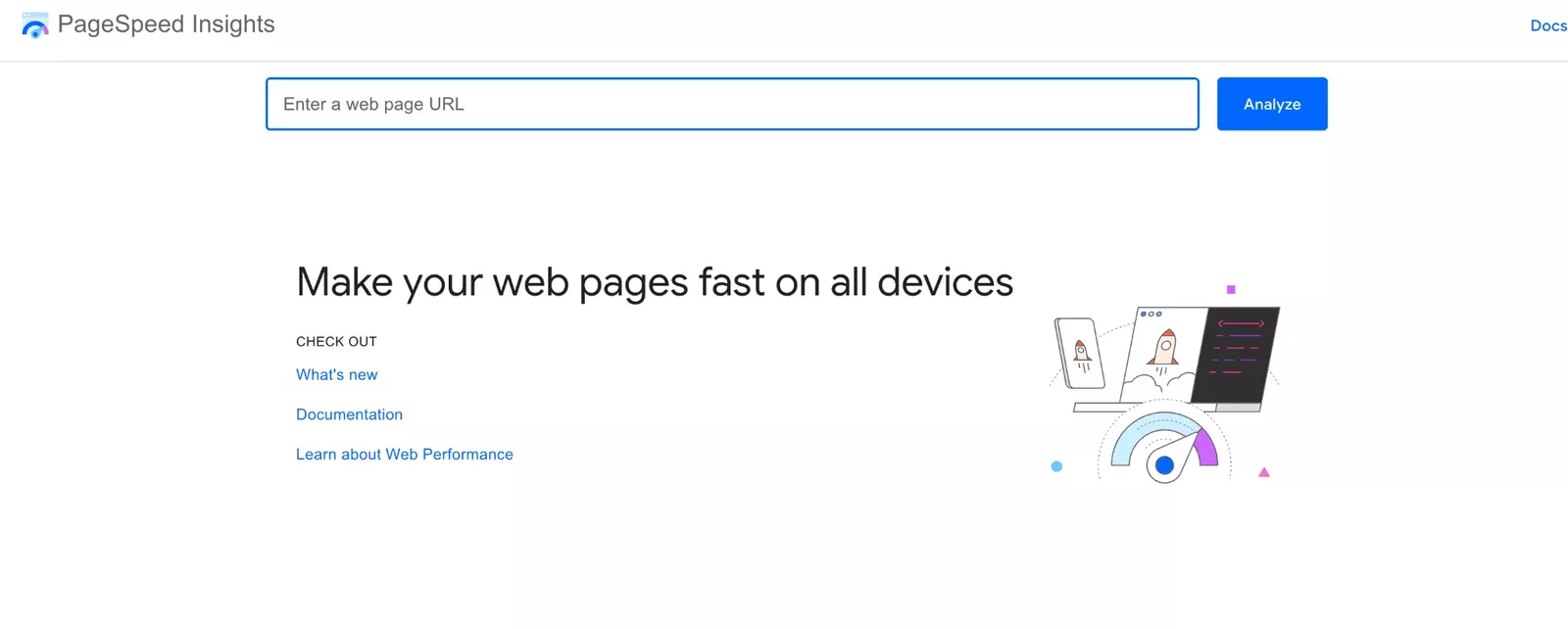
Google PageSpeed Insights is one of the most useful free options if your main concern is website performance.
Enter a page URL and the tool generates separate mobile and desktop reports. It provides a performance score along with metrics such as Largest Contentful Paint (LCP), Interaction to Next Paint (INP), and Cumulative Layout Shift (CLS).
It also provides diagnostics and optimization opportunities that can help identify why a page is slow.
PageSpeed Insights combines Lighthouse lab data with real-world Chrome User Experience Report data when sufficient field data is available. This gives you both controlled test information and data based on actual user experiences.
Use it when you want to check page performance, Core Web Vitals, and the technical causes of slow loading.
2. Google Lighthouse
Best for: Performance, SEO, accessibility, and technical best-practice audits
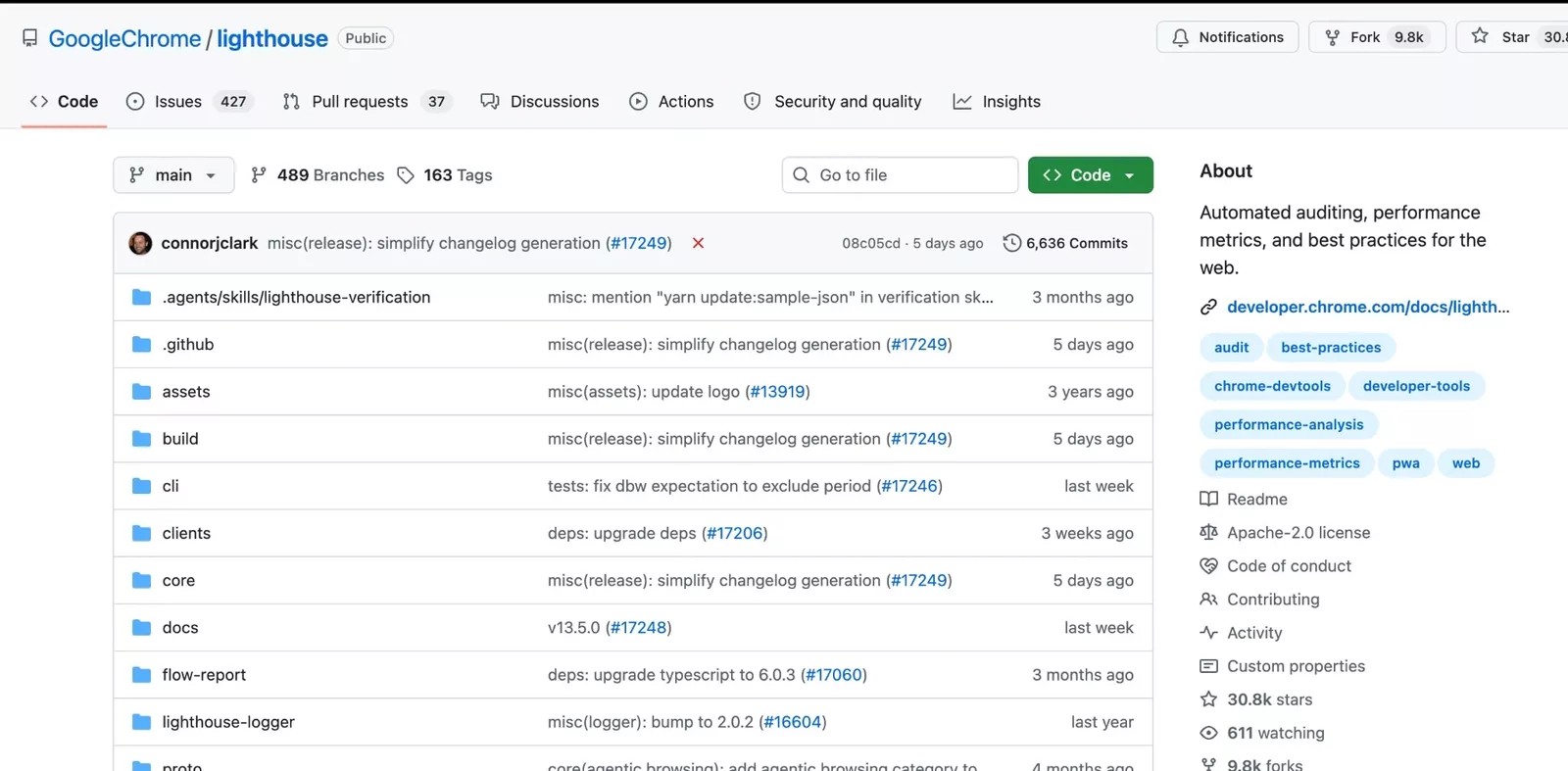
Lighthouse is an open-source auditing tool that analyzes webpages across several categories, including Performance, Accessibility, Best Practices, and SEO.
You can access Lighthouse through Chrome DevTools and other development workflows.
Unlike a simple speed test, Lighthouse can identify a wider range of implementation issues. Its SEO audits can flag certain technical and on-page problems, while its other categories provide information about performance, accessibility, and browser best practices.
Lighthouse is an audit tool, not a complete SEO platform. Its SEO checks do not replace keyword research, competitor analysis, backlink analysis, Search Console data, or a full website audit.
3. HubSpot Website Grader
Best for: A quick overall website assessment
HubSpot Website Grader is designed for users who want a simple report rather than a highly technical audit.
It evaluates areas such as performance, SEO, mobile readiness, and security and presents the findings in an accessible format.
This makes it useful for marketers and business owners who want to identify obvious website problems without working through a large technical report.
If the report identifies a performance issue, use a specialized tool such as PageSpeed Insights to investigate the technical cause.
4. W3C Markup Validation Service
Best for: Checking HTML markup
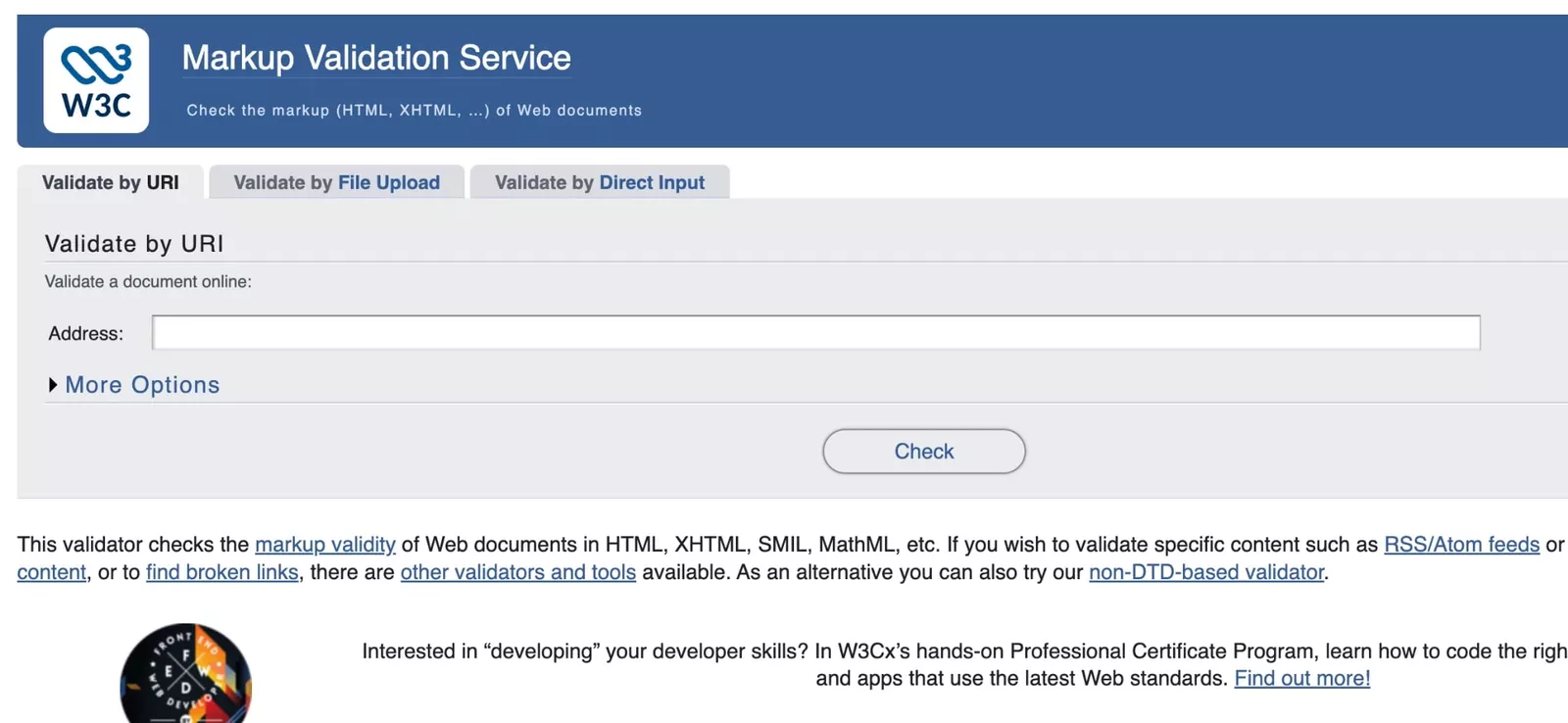
The W3C Markup Validation Service takes a different approach from most website graders. Instead of producing an overall website score, it checks whether your HTML follows relevant web standards.
This can help developers identify markup errors that may cause unexpected browser behavior or make pages harder to maintain.
Passing HTML validation does not mean that a website is optimized for SEO or guaranteed to rank well. It is one technical check within a larger website review.
5. Nibbler
Best for: A broad website quality check
Nibbler analyzes websites across multiple areas and provides a report covering factors such as accessibility, SEO, technology, content, and performance.
Its straightforward presentation makes it useful for an initial website review before moving to more specialized tools.
As with other automated graders, treat its recommendations as indicators rather than a complete assessment of your website.
6. Bing Webmaster Tools
Best for: Search visibility and SEO diagnostics
Bing Webmaster Tools is not a traditional website grader, but it can provide useful information when evaluating technical SEO and search visibility.
It provides data related to crawling, indexing, search performance, and website diagnostics.
Using it alongside Google Search Console gives you additional search-engine-specific information rather than relying entirely on a generic website score.
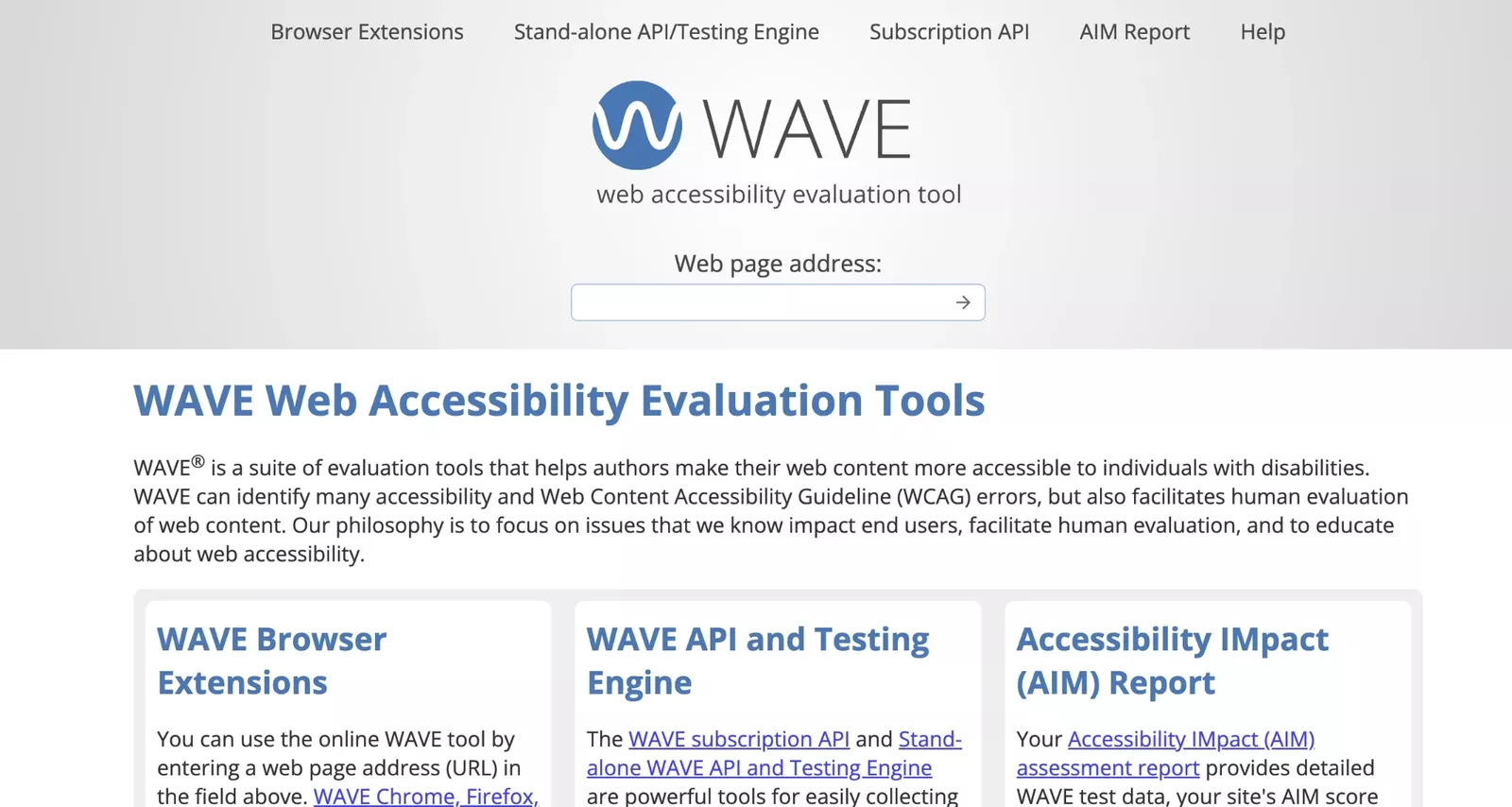
7. WebAIM WAVE
Best for: Accessibility testing
WAVE is designed specifically to identify potential accessibility issues on webpages.
It provides visual feedback and highlights potential problems directly within the page structure. This makes it useful for finding accessibility issues that a general website grader may not explain in enough detail.
Automated accessibility testing does not replace manual testing, but it can help identify problems that deserve further investigation.
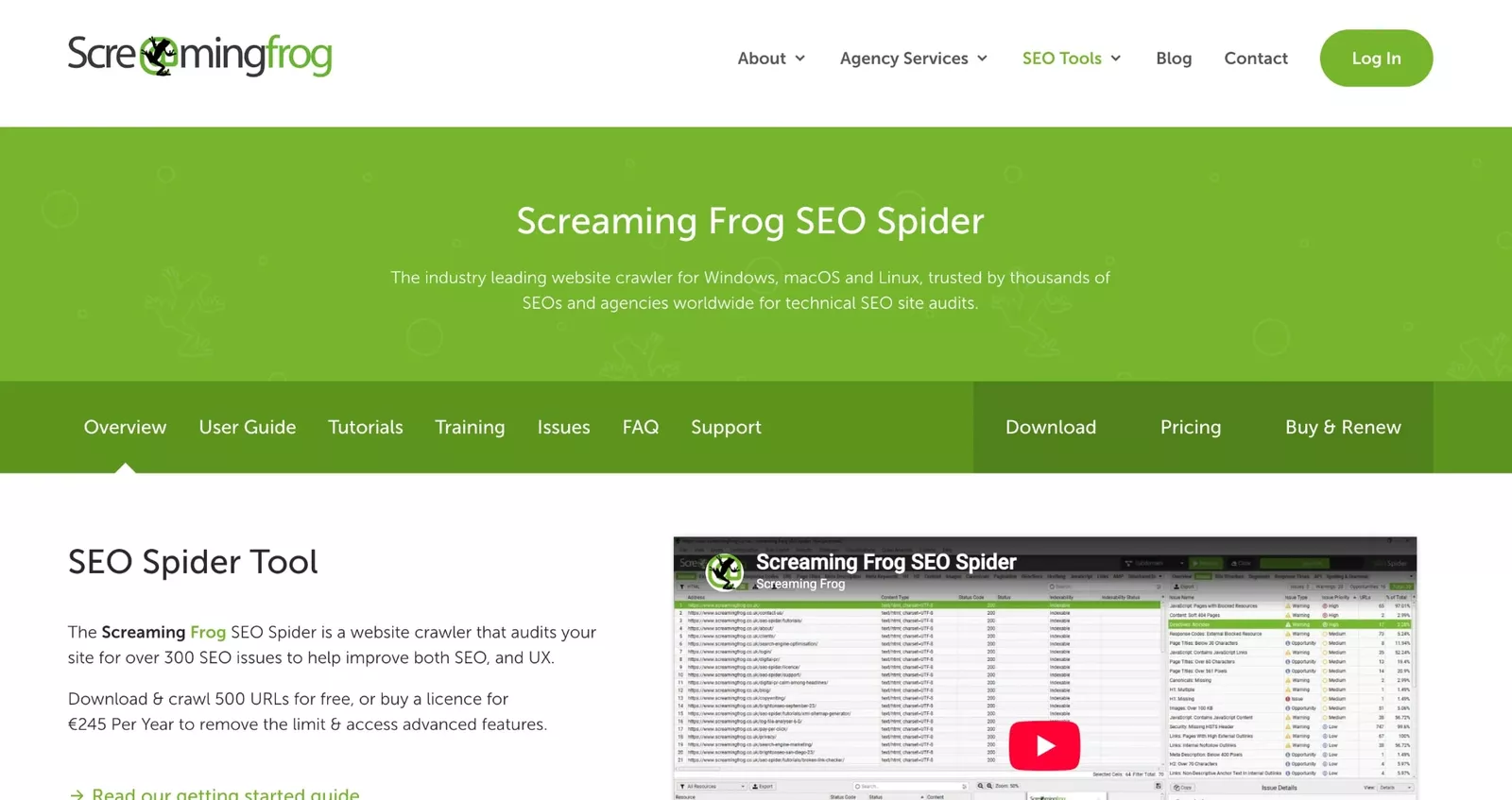
8. Screaming Frog SEO Spider
Best for: Technical SEO crawling
Screaming Frog SEO Spider takes a different approach from URL-based website graders.
Instead of simply testing one page, its SEO Spider can crawl websites and collect information about URLs, titles, meta descriptions, headings, redirects, canonical tags, links, images, and other technical elements.
This makes it particularly useful for larger websites where manually checking individual pages would take too long.
The free version has a crawl limit, so larger websites may require a paid license.
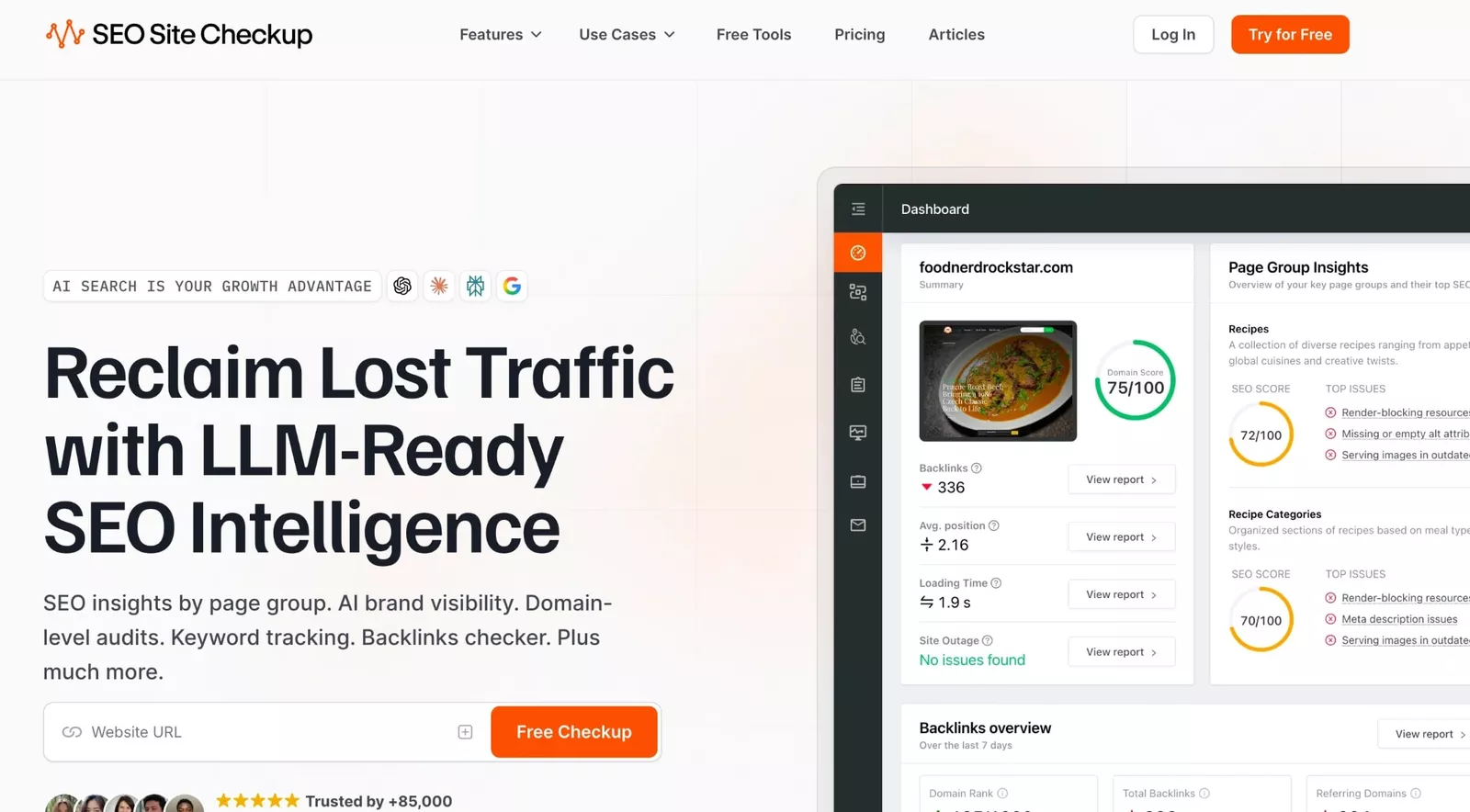
9. SEO Site Checkup
Best for: Quick SEO and website health checks
SEO Site Checkup provides automated reports covering different areas of website optimization.
It can be useful for getting a quick list of potential SEO and technical issues without performing a complete manual audit.
As with other automated tools, review the individual recommendations rather than assuming that every warning has the same importance.
10. Google Search Console
Best for: Search visibility, indexing, and Google Search diagnostics
Google Search Console belongs on this list because a website assessment should not stop at technical performance.
Search Console provides first-party information about your website’s presence in Google Search. You can use it to review search queries, clicks, impressions, indexing, sitemap status, Core Web Vitals, and other search-related information.
It answers questions that a typical website grader cannot.
For example, a performance grader can tell you that a page has a technical performance problem, while Search Console can show whether Google has indexed that page and how it performs in search.
Which Website Grader Should You Use?
The best approach is to use different tools for different questions rather than relying on one overall score.
| Goal | Recommended tool |
|---|---|
| Check page speed | Google PageSpeed Insights |
| Check Core Web Vitals | Google PageSpeed Insights |
| Audit one page | Google Lighthouse |
| Audit technical SEO across a site | Screaming Frog |
| Check Google Search performance | Google Search Console |
| Check accessibility | WAVE |
| Validate HTML | W3C Markup Validation Service |
| Get a quick overall assessment | HubSpot Website Grader or Nibbler |
These tools complement each other.
For example, PageSpeed Insights can identify a performance problem on an important landing page. Screaming Frog can then help determine whether similar problems affect other pages. Search Console can show whether those pages are indexed and receiving search traffic.
That combination gives you a much more useful picture of website health than any single website score.
How to Choose the Right Website Grader
Start with the problem you want to investigate.
If your main concern is website speed, use a performance-focused tool such as PageSpeed Insights.
If you need to review technical SEO across multiple pages, use a crawler such as Screaming Frog.
For accessibility, use a dedicated tool such as WAVE rather than relying only on an accessibility score from a general website grader.
If you want to understand Google Search performance, use Search Console because it provides search and indexing data that a standard website grader cannot generate.
Check What the Tool Actually Measures
Before trusting a score, look at the categories behind it.
A tool that scores mainly page speed cannot tell you whether your content matches search intent. Likewise, an SEO crawler cannot tell you exactly how real users experience your website.
Look for tools that clearly explain:
- What they test
- How they calculate their score
- Whether they analyze one page or an entire website
- Whether results come from real users or simulated tests
- Which issues require manual review
- What standards their recommendations are based on
This is particularly important with third-party tools that use terms such as “Google website grader” or “Google website score.” Using Google’s technology does not automatically make a tool a Google product.
How to Use a Google Website Grader to Audit Your Website
Running a URL through a grader takes seconds. Deciding what to fix first requires more context.
If you are using PageSpeed Insights as your starting point, follow this process.
1. Start With Your Most Important Pages
Do not test only the homepage.
Your homepage may perform well while your service pages, product pages, or blog posts have significant issues.
Test pages that matter directly to your business, including:
- Homepage
- Main service pages
- Product or category pages
- High-traffic landing pages
- Important blog posts
- Pages generating organic conversions
For a large website, start with your highest-value templates and representative URLs instead of testing hundreds of pages individually.
2. Test Mobile and Desktop Separately
PageSpeed Insights provides separate results for mobile and desktop.
The same page can behave differently depending on the device, network conditions, layout, and resources loaded by the browser.
Do not assume that a strong desktop score means the mobile experience is equally strong.
3. Check Core Web Vitals
Look beyond the overall performance score and review the Core Web Vitals:
LCP: How quickly the main content becomes visible.
INP: How quickly the page responds to user interactions.
CLS: How much the layout shifts unexpectedly while loading.
These metrics provide more useful information about the user experience than the headline score alone.
4. Investigate the Diagnostics
This is where a website grader becomes useful.
If the report identifies an issue, investigate its cause before making changes.
For example, a slow LCP could be related to the largest image on the page, server response time, render-blocking resources, or other implementation issues.
Do not automatically apply every recommendation. Some may have little practical value for your website, while others may require development changes that need to be tested carefully.
5. Compare the Results With Search Console
PageSpeed Insights tells you about page performance. Search Console gives you information about how Google Search is interacting with your website.
Use Search Console to check whether important pages are:
- Indexed
- Receiving impressions
- Generating clicks
- Appearing for relevant queries
- Reporting Core Web Vitals issues
- Experiencing indexing or crawling problems
This creates a more complete picture than using a website grader alone.
How to Perform a Complete Website SEO Audit
A full SEO audit goes beyond automated grader findings by connecting technical issues with search visibility, content, internal linking, and business goals.
A proper audit should connect technical findings with search visibility, content, internal linking, and business goals.
1. Audit Technical SEO
Start by checking the technical foundation of the website.
Review:
- Crawlability
- Indexability
- Robots.txt
- XML sitemap
- Canonical URLs
- HTTP status codes
- Redirects
- 404 errors
- Duplicate URLs
- HTTPS
- Mobile implementation
- Structured data where appropriate
Our SEO proposal framework also treats website hygiene as the first stage of an SEO process, covering Core Web Vitals, page speed, mobile responsiveness, security, Search Console, and XML sitemaps.
2. Review Page Performance
Run important URLs through PageSpeed Insights and examine:
- LCP
- INP
- CLS
- Server response time
- Image sizes
- JavaScript
- CSS
- Third-party scripts
Do not optimize every URL equally. Start with pages that generate organic traffic, leads, sales, or other important business outcomes.
3. Audit On-Page SEO
Check important pages for:
- Title tags
- Meta descriptions
- H1s
- Heading structure
- Search intent
- Keyword targeting
- Content depth
- Internal links
- Image alt text
- Structured data
A website can pass technical tests and still fail to rank because the content does not properly answer the query.
Check out our SEO copywriting guide; it’s useful here because on-page optimization starts with understanding search intent and identifying the search terms the audience actually uses.
4. Audit Internal Links
Internal links are often overlooked during automated website grading.
Look for:
- Orphan pages
- Important pages with few internal links
- Broken internal links
- Redirected internal links
- Irrelevant anchor text
- Important pages buried too deeply in the site structure
Marketing Lad’s guide to cross-linking in SEO explains how contextual internal links can connect related pages, help users navigate content, and create clearer relationships between topics.
5. Review Search Performance
Use Google Search Console to compare:
- Impressions
- Clicks
- CTR
- Average position
- Indexed pages
- Core Web Vitals
- Search queries
- Top landing pages
This helps determine whether technical issues identified by a website grader are affecting pages that actually matter to your organic search performance.
6. Audit Content Quality
Automated website graders cannot determine whether your content genuinely satisfies search intent.
Review:
- Search intent alignment
- Content overlap
- Thin pages
- Outdated information
- Duplicate content
- Missing subtopics
- Weak introductions
- Internal linking
- Pages competing for the same keyword
Keyword research should also be part of the process. Our SEO basics guide for startup businesses covers keyword research as part of building pages and content around the terms potential customers actually search for.
7. Review Backlinks and Authority
A website grader will not give you a complete picture of your backlink profile.
Review:
- Referring domains
- Backlink quality
- Relevant referring pages
- Broken backlinks
- Internal authority flow
- Pages receiving the most external links
Technical SEO and content are only part of the picture. Our SEO and link-building services include site audits, technical SEO, on-page optimization, internal linking, and link building as parts of a broader SEO strategy.
8. Connect the Audit to Business Goals
A technically clean website is not automatically a successful website.
Look at whether SEO improvements are contributing to:
- Qualified organic traffic
- Leads
- Sales
- Conversion rate
- Revenue
- Important landing page performance
Marketing Lad’s guide to SEO for lead generation covers how technical SEO, keyword strategy, content, on-page optimization, and backlinks can work together to support lead generation rather than treating rankings as the only outcome.
What Is a Good Google Website Grader Score?
There is no single score that defines a good website because different graders measure different things.
If you are using Google Lighthouse through PageSpeed Insights, Lighthouse classifies category scores as:
90 to 100: Good
50 to 89: Needs improvement
0 to 49: Poor
These ranges apply to Lighthouse category scores. They are not an overall Google ranking score.
Should You Aim for 100?
Not necessarily.
A perfect PageSpeed score can be useful, but it should not become the primary objective of your optimization work.
A website can score 100 in a controlled Lighthouse test and still have problems with content quality, search intent, internal linking, indexing, backlinks, or conversions.
Instead of asking, “How do I get a score of 100?”, ask:
Are my Core Web Vitals performing well?
Are important pages loading efficiently?
Are users experiencing delays or layout shifts?
Are technical SEO issues affecting crawling or indexing?
Does the page satisfy search intent?
Are performance problems affecting conversions?
Common Mistakes When Using Website Grader Tools
Chasing a Perfect Score
A 100/100 score can look impressive, but it should not be the only objective.
Focus on meaningful improvements to performance, usability, accessibility, and SEO.
Treating Every Warning Equally
Automated reports can contain many recommendations. Not every issue deserves immediate attention.
Prioritize issues affecting important pages and meaningful user or business outcomes.
Testing Only the Homepage
Your homepage may perform well while service pages, product pages, or blog posts have significant problems.
Test representative pages from different templates.
Confusing Performance With SEO
A website can have excellent performance and still have weak organic visibility.
Page speed tools do not tell you whether your content satisfies search intent, targets useful keywords, has strong internal links, or has earned relevant backlinks.
Following Recommendations Without Understanding Them
Before implementing a recommendation, understand what problem it solves, which pages it affects, and whether it could affect functionality.
A website grader tells you what it detected. It does not always tell you what should be prioritized.
How to Improve Your Website After Running a Website Grader
Once the audit is complete, prioritize the issues rather than trying to eliminate every warning.
Improve Page Speed
Investigate:
- Oversized images
- Inefficient image formats
- Excessive JavaScript
- Render-blocking resources
- Slow server response times
- Unnecessary third-party scripts
- Poor caching
- Excessive CSS or unused code
Address Core Web Vitals
For LCP, investigate the resource responsible for the largest visible element and the time required for the page to begin rendering.
For INP, look for JavaScript or other tasks that prevent the page from responding quickly to user interactions.
For CLS, investigate elements that change position while the page loads, such as images without defined dimensions or dynamically inserted content.
Fix Technical SEO Problems
Check:
- Indexability
- Canonical URLs
- Title tags
- Meta descriptions
- Heading structure
- Internal links
- Redirects
- Broken links
- XML sitemap configuration
- Mobile implementation
- Structured data
Re-Test After Making Changes
Once you make significant changes, run the affected pages through your testing tools again.
Compare the new results with the previous report, but also check whether the changes affected:
- Page functionality
- Mobile layouts
- Conversion elements
- Search visibility
- Indexing
- User experience
The goal is not to achieve the highest possible automated score. The goal is to remove meaningful problems and build a website that works well for users and search engines.
Final Takeaway
A Google website grader is not a specific Google product. The better approach is to identify which part of your website you need to evaluate and choose the tool that actually measures it.
For page performance and Core Web Vitals, start with PageSpeed Insights. For broader page-level audits, use Lighthouse. For search visibility and indexing, use Google Search Console. For site-wide technical SEO, use a crawler such as Screaming Frog.
But don’t stop at the score.
A useful website audit connects technical findings with content quality, search intent, internal linking, backlinks, indexing, organic traffic, and conversions. A website can have an excellent performance score and still struggle to rank or generate leads.
If you have run a website grader and the report contains more problems than you know how to prioritize, the next step is a proper SEO audit that connects those findings to your organic search goals.
Need help with your website SEO? Marketing Lad provides technical SEO, on-page optimization, content strategy, site audits, internal linking, and link-building services to help businesses turn website issues into a practical SEO plan.
Frequently Asked Questions
No. “Google Website Grader” is not the name of an official Google website auditing product. Google provides several tools that can evaluate different aspects of a website, including PageSpeed Insights, Lighthouse, and Search Console.
Google PageSpeed Insights is the most relevant Google tool for analyzing webpage performance. It provides performance metrics, Core Web Vitals, diagnostics, and optimization recommendations.
Yes. PageSpeed Insights is available as a free web-based tool for analyzing webpage performance.
If you are referring to a Lighthouse performance score, 90 to 100 is classified as good, 50 to 89 needs improvement, and below 50 is poor. That does not mean a website needs a 100 score to rank well.
Running a page through PageSpeed Insights does not directly change its ranking. The tool measures and diagnoses performance. A PageSpeed score itself should not be treated as a ranking score.
Results can vary because of server response time, network conditions, resource availability, caching, third-party scripts, page changes, and testing conditions. Field data can also change as new real-user experiences are collected.
Use PageSpeed Insights for performance and Core Web Vitals, Lighthouse for broader page-level audits, Search Console for Google Search visibility and indexing, and a crawler such as Screaming Frog for a broader technical SEO review. For accessibility, use a dedicated accessibility testing tool such as WAVE.
It depends on the tool.
Some graders primarily analyze the URL you submit, while crawlers can discover and analyze many URLs across a site. For larger websites, a crawler is generally more useful for identifying site-wide technical patterns.
Yes, if you need a complete assessment.
Different tools measure different things. PageSpeed Insights can diagnose performance, Search Console provides Google Search and indexing data, and a technical SEO crawler can identify site-wide issues.